Digital Art Tool Advisor
Answer these questions to find out if you need a tablet for digital art.
This tool is based on the article: "Do I Need a Tablet for Digital Art? Here's What Actually Matters"
You’ve been sketching on paper for years. Maybe you’ve tried drawing on your phone. Now you’re wondering: do I need a tablet for digital art? The answer isn’t yes or no-it’s "it depends."
What a tablet actually does for digital artists
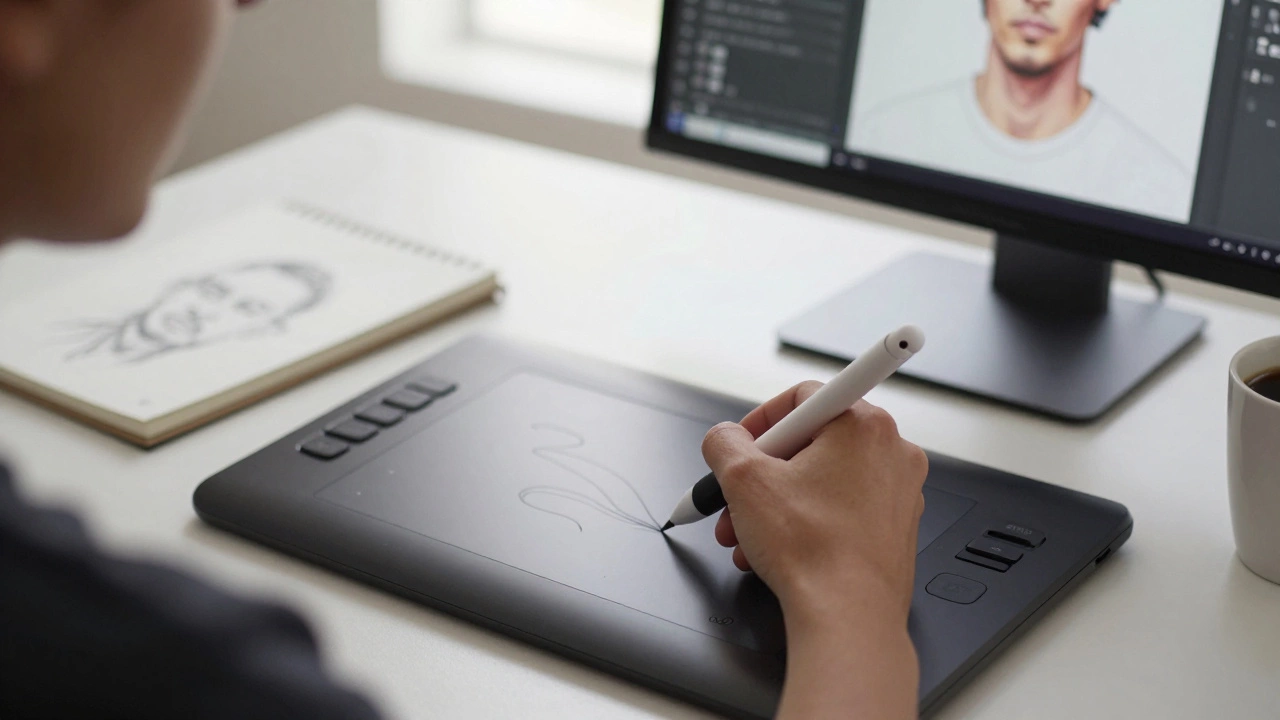
A drawing tablet isn’t just a fancy screen. It’s a tool that connects your hand directly to a digital canvas. Unlike using a mouse or trackpad, a tablet with a stylus lets you draw with pressure sensitivity, tilt recognition, and natural hand movement. That’s why artists who switch from paper to tablets often say it feels like drawing on paper-but with undo buttons.Take a simple example: shading a portrait. On paper, you press harder for darker lines. On a tablet, you do the same. On a computer with a mouse? You click, drag, adjust brushes, tweak layers-it’s slow. A tablet cuts out the middleman.
You don’t need a tablet to make digital art
Let’s be clear: you can make great digital art without a tablet. Many artists use Photoshop or Procreate on iPads with their fingers. Others use free tools like Krita or FireAlpaca on a laptop with a mouse. Some even trace over photos with a stylus on their phone.But here’s the catch: those methods are harder to control. Finger drawing lacks precision. Mouse drawing feels robotic. If you’re serious about line quality, texture, or expressive strokes, you’ll hit a wall fast.
There’s a reason pros use Wacom, Huion, or Apple Pencil. It’s not about branding-it’s about feedback. The resistance of the stylus, the way the tip responds to angle and pressure, the lack of lag-these things add up. You can’t replicate that with a trackpad.
What kind of tablet should you get?
Not all tablets are the same. There are three main types:- Graphics tablets (no screen): Like Wacom Intuos. You draw on a pad while watching your work on a separate monitor. Cheap, great for beginners.
- Pen displays (screen tablets): Like Wacom One or Huion Kamvas. You draw directly on the screen. More expensive, but feels closest to paper.
- Tablet computers: Like iPad Pro or Samsung Galaxy Tab S9. Full computers with apps like Procreate or Clip Studio Paint. Portable, powerful, but pricier.
If you’re just testing the waters, start with a $70 Wacom Intuos. You’ll get pressure sensitivity, 4096 levels of pen response, and a decent-sized drawing area. It connects to any Windows or Mac computer. You don’t need to buy a new laptop.
If you want to draw on the go and don’t mind spending $500+, the iPad Air with Apple Pencil is a solid middle ground. It runs Procreate, which is used by thousands of professional illustrators.

What you’re really paying for
The price of a tablet isn’t just for the hardware. You’re paying for:- Latency: How fast your stroke appears on screen. High-end tablets have under 10ms delay. Cheap ones can lag by 50ms-enough to feel "off."
- Pressure sensitivity: Entry-level tablets offer 2048 levels. Pros need 8192. Most beginners won’t notice the difference until they start doing detailed linework.
- Screen quality: If you’re using a pen display, color accuracy matters. Look for 90%+ sRGB coverage. If you’re using a tablet computer, check if it supports P3 color.
- Software: A tablet alone won’t make art. You need apps. Procreate (iPad), Clip Studio Paint (Windows/Mac/iPad), Krita (free), and Adobe Fresco are the top choices.
One artist I know spent $1,200 on a Wacom Cintiq, then realized she didn’t know how to use layers. She went back to pencil and paper for six months. Then she came back-with better skills and a $150 Intuos. That’s the real lesson: the tool doesn’t make the artist. But the right tool can remove friction.
When you don’t need a tablet at all
If you’re only doing quick sketches, meme art, or social media doodles, your phone or laptop might be enough. Many TikTok artists draw on iPads with their fingers and get millions of views. No tablet needed.If you’re working in vector art-logos, icons, illustrations with clean lines-you might not need pressure sensitivity at all. Adobe Illustrator works fine with a mouse. You can even use a graphics tablet with a mouse if you prefer.
And if you’re just learning composition, anatomy, or color theory? Stick with paper. A sketchbook costs $5. A tablet costs $100+. Learn the fundamentals first. Then upgrade.

What most beginners get wrong
People think buying a tablet will magically make them better artists. It won’t. It just makes the process easier.Here’s what actually happens:
- You buy a tablet. You’re excited.
- You open the app. You draw a line. It looks terrible.
- You blame the tablet. You think you need a better one.
- You buy another tablet. Same result.
- You give up.
The real issue? You’re still learning to draw. The tablet just shows you how bad your hand is.
Instead, use the tablet as a mirror. It reflects your skills-good and bad. If your lines are shaky, practice line control. If your shapes are off, draw from life. The tablet doesn’t fix your technique. It just gives you more tools to improve it.
What to do next
If you’re serious about digital art, here’s your roadmap:- Start with free software: Krita (Windows/Mac) or Medibang Paint (iPad/Android).
- Use your mouse or finger for a week. Draw portraits, still lifes, landscapes. See where you struggle.
- Buy a $70 graphics tablet (Wacom Intuos or Huion H610). Connect it to your computer.
- Redraw the same sketches you did with your mouse. Notice the difference.
- After a month, ask yourself: "Do I enjoy this more?" If yes, keep going.
Don’t jump to the iPad Pro. Don’t buy a $1,000 pen display. You don’t need it yet. You need practice.
Bottom line
You don’t need a tablet to make digital art. But if you want to make it well, quickly, and with control-yes, you need one. Not because it’s trendy. Not because your favorite artist uses it. But because it’s the most natural way to translate what’s in your head to the screen.Start small. Learn to draw first. Then add the tool. The tablet won’t make you an artist. But it might help you become one.
Can I use my phone for digital art instead of a tablet?
Yes, you can. Apps like Procreate Pocket, ibis Paint X, and Autodesk Sketchbook work well on phones. But the small screen makes detailed work hard. You’ll struggle with precision, and your hand will cover the drawing area. Phones are great for quick sketches or color studies, but not for serious illustration or long projects.
Is a Wacom tablet worth the money?
For beginners, the Wacom Intuos (around $70-$100) is one of the best values. It’s reliable, has excellent pressure sensitivity, and works with all major art software. Wacom’s drivers are stable, and their pens last years. More expensive Wacom models are overkill unless you’re doing professional publishing or animation. Stick to Intuos unless you’re making art for clients daily.
Do I need a computer to use a drawing tablet?
It depends. Graphics tablets (like Wacom Intuos) need a computer. Pen displays (like Wacom One) can connect to a computer or run standalone if they’re Android-based. Tablet computers like the iPad or Samsung Galaxy Tab don’t need a separate computer-they’re full devices. If you only have a phone, you can’t use a standard graphics tablet without an adapter and compatible software.
What’s the cheapest way to start digital art?
Use your phone or laptop with free software like Krita or Medibang Paint. Draw with your finger or mouse. Then, spend $70 on a basic graphics tablet like the Huion H610. That’s under $100 total. You can make professional-quality art with that setup. Many artists on ArtStation started this way.
Will a tablet help me improve faster?
Not by itself. But it removes friction. With a tablet, you can draw naturally, experiment with brushes, undo mistakes, and layer your work-all things that speed up learning. If you’re stuck drawing the same thing over and over on paper, a tablet gives you the freedom to try new styles without wasting paper. That freedom often leads to faster growth.