AI Painting Tool Selector
Choose Your Photo Characteristics
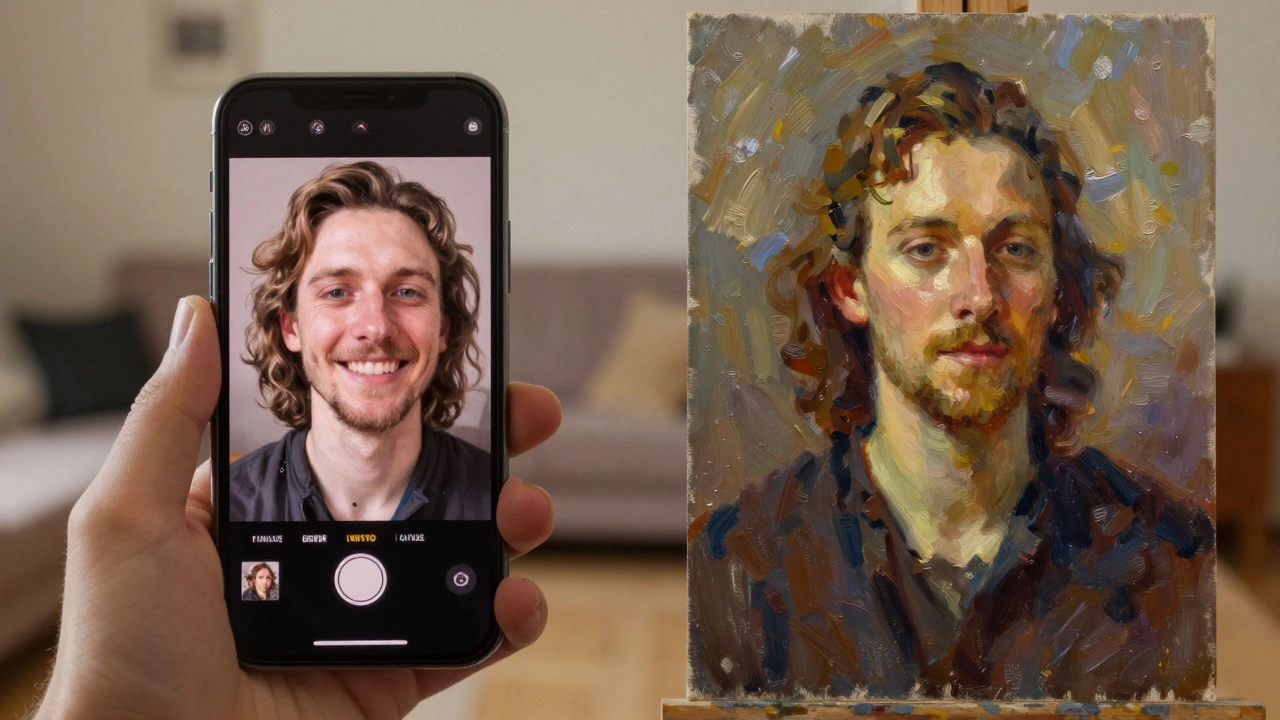
You’ve taken a great photo - maybe it’s your kid laughing, your partner smiling, or even a self-portrait you actually like. Now you want to turn it into a painting. Not just a filter. Not just a blurry filter that looks like a watercolor. You want something that feels like real paint - brushstrokes, texture, depth - but you don’t want to pay for it, and you don’t want to learn how to paint for six months.
Good news: you can do this for free today, right now, with tools that work on your phone or laptop. No art degree needed. No expensive software. Just your photo and a few clicks.
Why This Works Better Than You Think
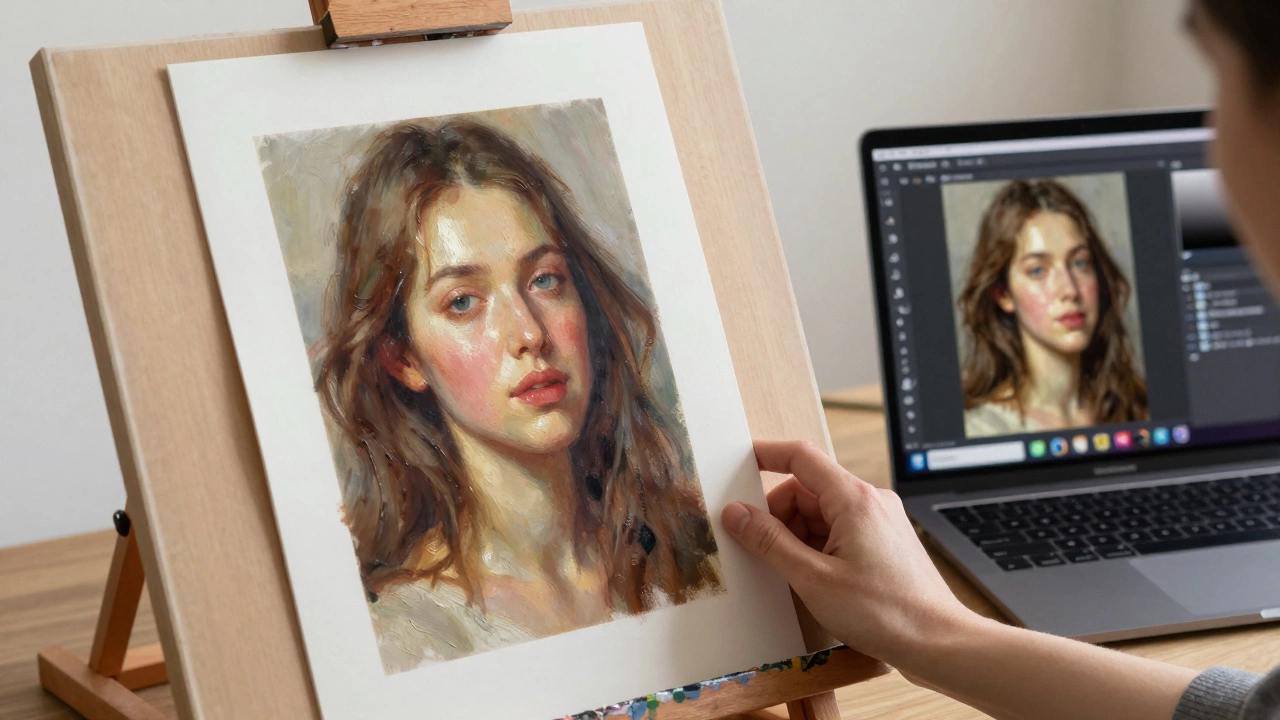
Turning a photo into a painting isn’t just about slapping on a filter. It’s about reinterpreting light, shadow, and texture using algorithms trained on centuries of painting techniques. Modern AI doesn’t guess - it learns. It’s been fed thousands of paintings by Van Gogh, Rembrandt, and Monet. So when you upload a photo, the AI doesn’t just blur it. It figures out where the light hits your cheek, where the shadows fall, and how a real painter would handle those edges.
Think about it: a photo captures a moment. A painting interprets it. That’s the gap these tools bridge.
Step-by-Step: Turn Your Photo Into a Painting (Free)
Here’s how to do it in under five minutes, using only free tools you already have access to.
- Choose your photo. Pick one with good lighting. Faces work best if the eyes are clear and not shadowed. Avoid photos taken in total darkness or with harsh flash.
- Go to a free AI painting tool. Try DeepArt, PaintsChainer, or StarryAI. All work in your browser. No sign-up required for basic use.
- Upload your photo. Drag and drop it into the tool. Most let you crop or adjust the size before processing.
- Select a painting style. You’ll see options like "Oil Painting," "Watercolor," "Impressionist," or "Van Gogh Style." For portraits, "Oil Painting" or "Rembrandt" usually gives the most lifelike results. Avoid "Abstract" unless you want your face to look like a Picasso.
- Generate. Click "Process" or "Apply." Wait 20-60 seconds. The AI analyzes your photo, matches it to brushstroke patterns from real paintings, and rebuilds it as art.
- Download. Most tools let you download the result in high resolution for free. Save it as a PNG for best quality.
That’s it. You now have a painting version of your photo. No brush, no canvas, no mess.
Best Free Tools for Portrait Painting
Not all tools are made equal. Some turn your face into a cartoon. Others make it look like a 1980s computer graphic. Here are the top three that actually make your photo look like a real painting - and they’re all free.
| Tool | Best For | Oil Painting Quality | Free Limits | Mobile App |
|---|---|---|---|---|
| DeepArt | Realistic portraits | ★★★★☆ | 1 free download per day | Yes |
| PaintsChainer | Soft, painterly textures | ★★★★★ | Unlimited, watermarked | Yes |
| StarryAI | Artistic flair | ★★★★☆ | 5 free credits/month | Yes |
For portraits, PaintsChainer wins. It doesn’t just copy brushstrokes - it rebuilds the face with the kind of subtle blending you’d see in a 19th-century portrait. The skin tones stay natural. The eyes don’t turn into black holes. The hair has texture, not just pixels.
What to Avoid
Not every app that says "painting" actually makes art. Watch out for:
- Apps that only offer cartoon filters (looking at you, Instagram filters)
- Tools that require payment just to download the result
- Services that blur your photo and call it "oil painting" - that’s not a painting, that’s a glitch
- AI tools that turn your face into a fantasy character (unless that’s what you want)
Some apps use outdated models. If your result looks like a 2016 Snapchat filter, you’re using the wrong tool. Stick to the ones listed above. They’ve been updated to work with modern neural networks trained on real oil and watercolor techniques.
Why This Isn’t Cheating
You might wonder: is this even art? Isn’t this just letting a computer do the work?
Here’s the thing: artists have always used tools. Painters used cameras to trace compositions in the 1800s. Sculptors used projectors. Photographers used darkrooms. AI is just the next tool.
What you’re doing isn’t replacing creativity - it’s expanding it. You’re choosing the photo. You’re picking the style. You’re deciding which version to keep. That’s still art. You’re not painting with a brush - but you’re painting with intent.
Real-World Use Cases
People are using this for more than just fun.
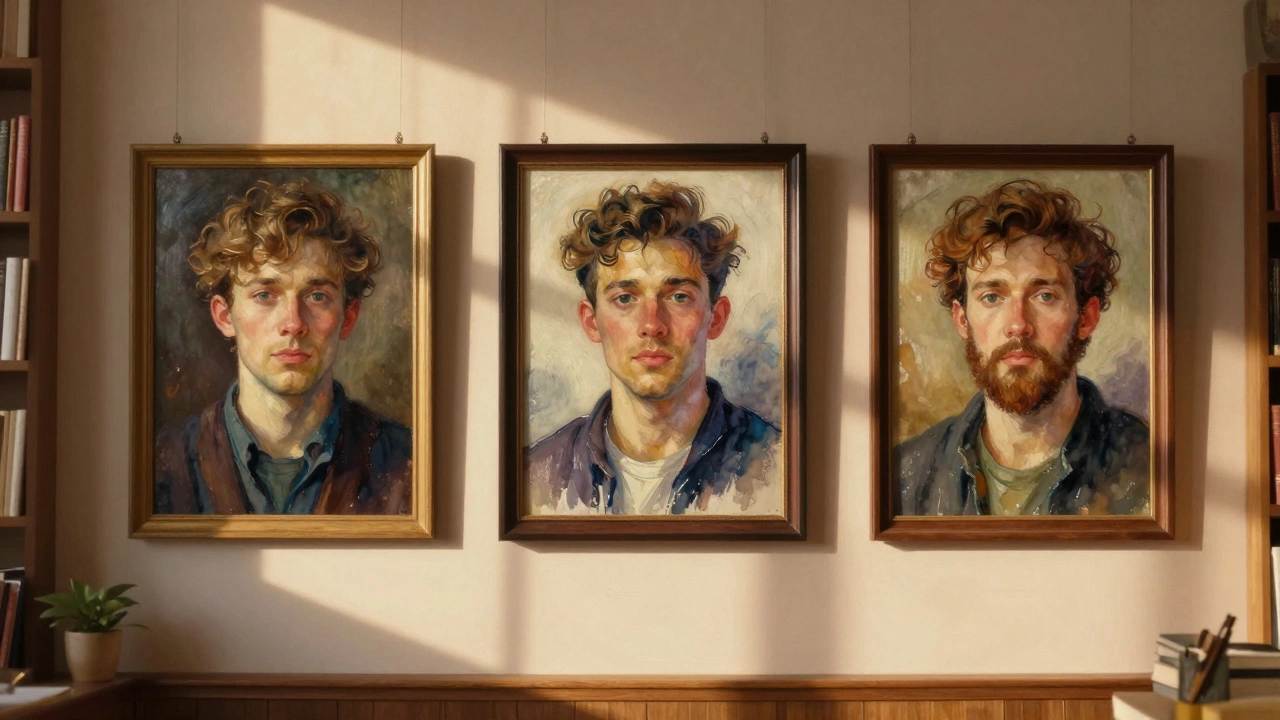
- Grandparents turn old photos into framed paintings for family gifts.
- Photographers turn portraits into art prints for online stores.
- Art therapists use it to help clients express emotion when they can’t draw.
- Widows and widowers turn photos of loved ones into keepsakes that feel more personal than a printed picture.
In Vancouver, I’ve seen people hang these in coffee shops and libraries. Not because they’re perfect - but because they feel alive. Like the person in the photo is still there, but painted with care.
Next Steps: Make It Better
Want to take it further? Here’s how:
- Use Photoshop Express (free) to adjust contrast and saturation before uploading. A little tweak makes the AI work better.
- Try blending two styles. Upload the same photo twice - once with "oil," once with "watercolor" - then layer them in a free app like Photopea (free online Photoshop alternative).
- Print it. Use a local print shop (like FedEx Office or Staples) to print on canvas. Costs under $20. Looks like real art.
One last tip: if the eyes look weird after processing, go back to the original photo. Adjust the lighting. Sometimes a slight change makes all the difference.
Frequently Asked Questions
Can I turn a selfie into a painting for free?
Yes. Selfies work surprisingly well, especially if they’re well-lit. Avoid selfies taken in dark rooms or with phone flash - they create harsh shadows that confuse the AI. Try taking the photo near a window. Natural light gives the best results.
Do I need to create an account to use these tools?
No. Tools like DeepArt and PaintsChainer let you upload and download results without signing up. Some sites ask for an email to send the result - you can use a temporary email if you want privacy. But you don’t need to pay or subscribe to get started.
Will the AI steal my photo?
Most reputable tools delete your uploaded photo after processing. DeepArt and PaintsChainer don’t store images. But avoid tools that require you to log in with Google or Facebook - they might keep your data. Always check the privacy policy. If it says "we may use your images to improve our AI," skip it.
Can I turn a photo into a specific artist’s style, like Van Gogh?
Yes. Tools like StarryAI and DeepArt have preset styles named after artists - "Van Gogh," "Rembrandt," "Monet." These aren’t exact copies - they’re interpretations. The AI learns how those artists handled light, color, and texture, then applies those rules to your photo. It’s not cloning a Van Gogh painting - it’s painting your face the way Van Gogh might have.
Why does my portrait look blurry after conversion?
Blurry results usually come from low-resolution photos. Try using a photo taken with a modern phone (12MP or higher). If you’re using an old photo, zoom in and crop tightly on the face before uploading. Also, avoid using screenshots - they’re low quality. Use the original file from your camera roll.