Best Apps for Digital Art in 2026: Pro Tools for iPad, Android & PC
There is no single "best" app for digital art. The right tool depends entirely on what device you hold in your hand and what kind of artist you want to be. Are you sketching quick concepts on a subway ride with an iPad? Or are you building complex 3D environments on a desktop workstation? In 2026, the gap between mobile creativity and professional studio work has narrowed significantly, but the workflows remain distinct.
I’ve tested dozens of these applications over the years, from early beta versions to their current stable releases. The market is crowded, which makes choosing difficult. You don’t need every feature listed in a spec sheet; you need a brush engine that feels responsive and a layer system that doesn’t crash when you hit fifty layers. Here is a breakdown of the most reliable tools available right now, categorized by how they fit into your daily workflow.
The Gold Standard for Tablet Artists
If you own an Apple device, the conversation usually starts with Procreate. It is a powerful raster graphics editor designed exclusively for iPadOS, known for its intuitive interface and one-time purchase model. It remains the dominant force in the mobile digital art space because it removes friction. There are no subscription fees, no complex menus hiding basic functions, and the pressure sensitivity mapping is incredibly precise.
What makes Procreate stand out is its optimization. It runs smoothly even on older iPads, allowing artists to use high-resolution canvases without lag. The brush engine allows for deep customization, meaning you can simulate everything from charcoal smudges to watercolor blooms. However, it lacks some advanced features found in desktop counterparts, such as CMYK color mode support or non-destructive adjustment layers. For illustrators, concept artists, and hobbyists who value speed and simplicity, it is unmatched.
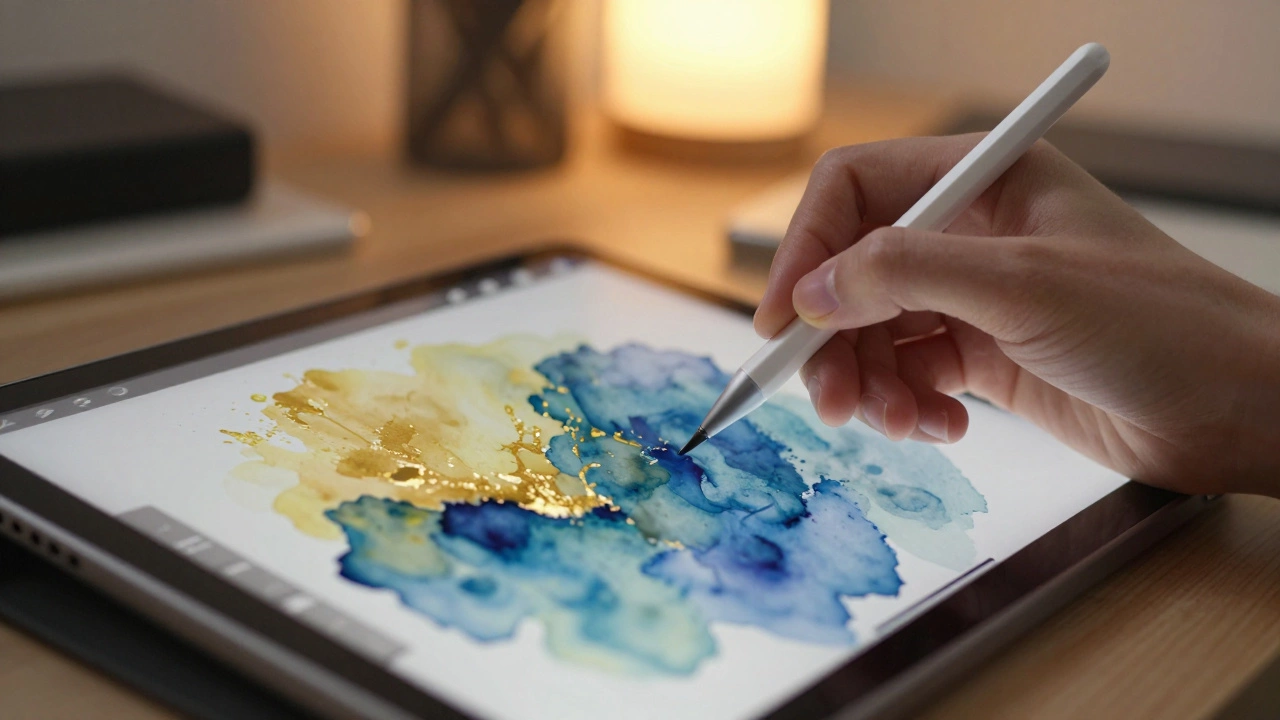
For those who need more robust file management and collaboration features, Adobe Fresco provides a compelling alternative. It is a vector and raster painting app that integrates with Adobe Creative Cloud and offers live watercolor and oil brushes. Its unique selling point is the "live" brushes, which simulate fluid dynamics in real-time. When you paint with the live watercolor brush, the pigment spreads and bleeds just like real water on paper. This requires significant processing power, so it works best on newer devices with neural engines.
Desktop Powerhouses for Professionals
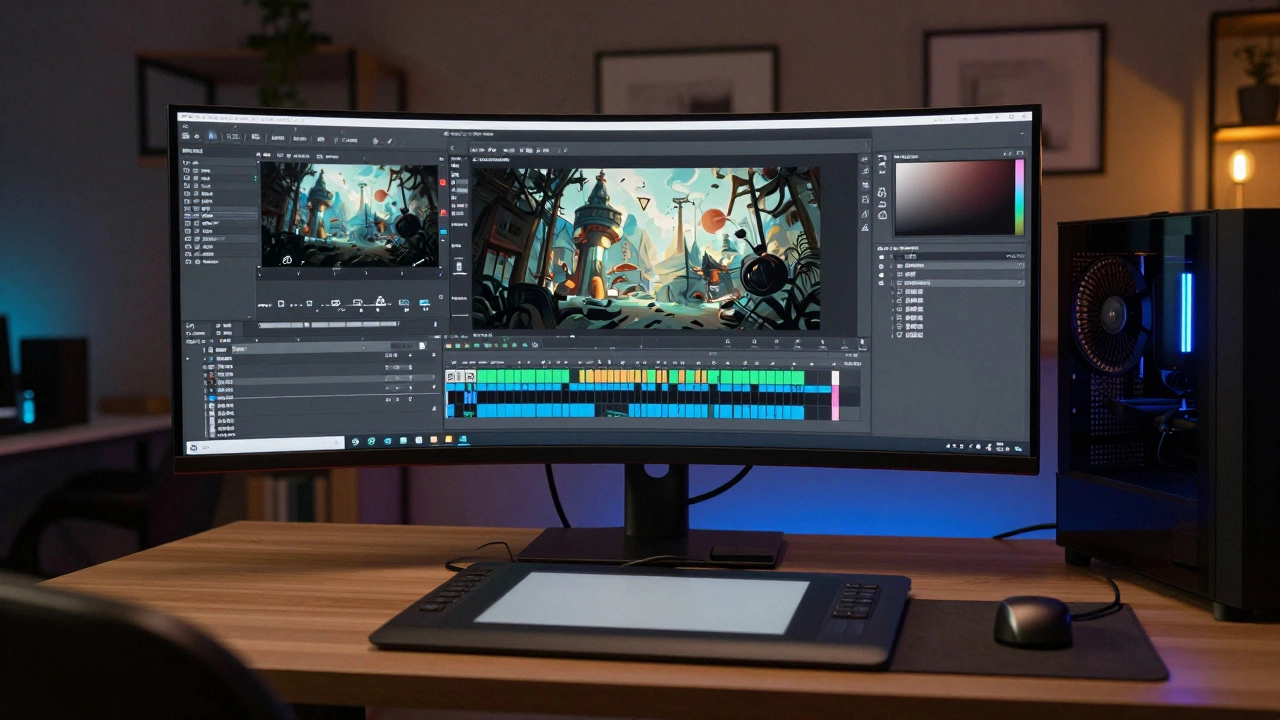
When the project demands precision, complex compositing, or print-ready output, desktop applications take over. Adobe Photoshop is still the benchmark. Despite its steep learning curve and monthly subscription cost, its ecosystem integration is unbeatable. If you are working in a team where designers use Illustrator and video editors use After Effects, Photoshop ensures seamless asset transfer.
Photoshop’s brush engine has improved dramatically in recent years, offering stabilizers and texture overlays that mimic traditional media. However, many pure digital painters find its interface cluttered. They often prefer Clip Studio Paint. Originally built for manga artists, Clip Studio excels at line work. Its vector layers allow you to adjust line thickness and curvature after you’ve drawn them, a feature that saves hours of correction time. It also includes 3D models you can pose and use as references directly within the canvas, bridging the gap between 2D drawing and 3D blocking.
Another strong contender in the desktop space is Corel Painter. Unlike Photoshop, which is general-purpose, Corel Painter is dedicated solely to artistic simulation. Its algorithms replicate the viscosity of oil paint, the granulation of dry pastels, and the transparency of ink washes with remarkable accuracy. It is expensive, but for artists whose style relies heavily on the tactile feel of traditional materials, it offers a depth of texture that other programs struggle to match.
Budget-Friendly and Open Source Options
You do not need to spend hundreds of dollars to create professional-grade digital art. Krita is a powerhouse that rivals paid software in many areas. Developed by a community of volunteers, Krita offers a robust set of brushes, stabilization tools, and animation capabilities. It supports custom brushes created for Photoshop, expanding its library further. The interface is customizable, allowing you to hide panels you don’t use to maximize screen real estate.
For beginners or those with lower-end hardware, MediBang Paint is an excellent choice. It is incredibly light on system resources, running smoothly on older laptops and Chromebooks. While it lacks the advanced brush physics of Krita or Photoshop, it provides all the essential tools for line art, coloring, and panel layout. Its cloud functionality allows you to start a drawing on a tablet and finish it on a desktop, provided you have a stable internet connection.
Mobile Accessibility Beyond Tablets
Digital art isn’t limited to iPads or large monitors. Smartphone apps have become surprisingly capable. IbisPaint X dominates the smartphone market. It offers a vast library of user-generated brushes and stamps. A key feature is the ability to record your drawing process automatically, which is perfect for creating timelapse videos for social media. The interface is dense with options, which can be overwhelming at first, but it packs desktop-level features into a small screen.
On Android, HiPaint has gained traction as a direct competitor to Procreate. It mimics the gesture controls and menu structure of its iOS counterpart, making it easy for users switching platforms to adapt. While it may lack some of the polish and stability of established apps, it fills a critical gap for Android users who want a premium painting experience without rooting their devices or using emulators.
Choosing the Right Tool for Your Workflow
Selecting an app is less about features and more about ergonomics. Ask yourself three questions: What is my primary device? What is my budget? What is my end goal?
| App Name | Platform | Cost Model | Best For |
|---|---|---|---|
| Procreate | iPadOS | One-time purchase | Illustration, Sketching |
| Adobe Photoshop | Windows, macOS | Subscription | Professional Compositing |
| Clip Studio Paint | Windows, macOS, iPad | Subscription or One-time | Manga, Comics, Line Art |
| Krita | Windows, macOS, Linux | Free (Open Source) | Concept Art, Animation |
| IbisPaint X | iOS, Android | Freemium | Mobile Sketching, Social Media |
If you are starting out, download Krita or IbisPaint X. They are free and will teach you the fundamentals of layers, opacity, and blending modes without financial risk. Once you understand your workflow, invest in specialized tools. If you draw comics, buy Clip Studio Paint. If you illustrate for books, stick with Procreate or Photoshop. Remember, the software is just a container for your ideas. Mastering the basics of composition and color theory matters far more than having the latest brush pack.
Frequently Asked Questions
Is Procreate worth buying if I already have Adobe Photoshop?
Yes, if you have an iPad. Procreate offers a faster, more intuitive drawing experience on touchscreens compared to Photoshop’s mobile version. Many professionals use both: Photoshop for final edits and compositing on desktop, and Procreate for initial sketches and painting on the go.
Can I use digital art apps without a stylus?
You can, but it limits precision. Finger painting works for broad strokes and simple illustrations, but detailed line art and subtle shading require the pressure sensitivity and tilt recognition of a stylus. For tablets, the Apple Pencil or Samsung S Pen are industry standards.
What is the best free digital art software for Windows?
Krita is the best option for serious artists. It offers professional-grade brushes, animation tools, and a non-destructive workflow. MediBang Paint is a good alternative if you focus primarily on manga or comics and need a lighter application.
Do I need a powerful computer to run digital art apps?
It depends on the app and canvas size. Lightweight apps like MediBang or IbisPaint run on modest hardware. However, apps like Photoshop, Corel Painter, or Adobe Fresco with live brushes require a decent GPU and at least 16GB of RAM for smooth performance with large files.
Which app is better for beginners: Procreate or Clip Studio Paint?
Procreate is generally easier for beginners due to its simplified interface and gesture-based controls. Clip Studio Paint has a steeper learning curve because of its extensive toolset and menu complexity, but it offers more long-term flexibility for comic and manga creation.
There is no single "best" app for digital art. The right tool depends entirely on what device you hold in your hand and what kind of artist you want to be. Are you sketching quick concepts on a subway ride with an iPad? Or are you building complex 3D environments on a desktop workstation? In 2026, the gap between mobile creativity and professional studio work has narrowed significantly, but the workflows remain distinct.
I’ve tested dozens of these applications over the years, from early beta versions to their current stable releases. The market is crowded, which makes choosing difficult. You don’t need every feature listed in a spec sheet; you need a brush engine that feels responsive and a layer system that doesn’t crash when you hit fifty layers. Here is a breakdown of the most reliable tools available right now, categorized by how they fit into your daily workflow.
The Gold Standard for Tablet Artists
If you own an Apple device, the conversation usually starts with Procreateis a powerful raster graphics editor designed exclusively for iPadOS, known for its intuitive interface and one-time purchase model. It remains the dominant force in the mobile digital art space because it removes friction. There are no subscription fees, no complex menus hiding basic functions, and the pressure sensitivity mapping is incredibly precise.
What makes Procreate stand out is its optimization. It runs smoothly even on older iPads, allowing artists to use high-resolution canvases without lag. The brush engine allows for deep customization, meaning you can simulate everything from charcoal smudges to watercolor blooms. However, it lacks some advanced features found in desktop counterparts, such as CMYK color mode support or non-destructive adjustment layers. For illustrators, concept artists, and hobbyists who value speed and simplicity, it is unmatched.
For those who need more robust file management and collaboration features, Adobe Frescois a vector and raster painting app that integrates with Adobe Creative Cloud and offers live watercolor and oil brushes provides a compelling alternative. Its unique selling point is the "live" brushes, which simulate fluid dynamics in real-time. When you paint with the live watercolor brush, the pigment spreads and bleeds just like real water on paper. This requires significant processing power, so it works best on newer devices with neural engines.
Desktop Powerhouses for Professionals
When the project demands precision, complex compositing, or print-ready output, desktop applications take over. Adobe Photoshopis the industry-standard raster graphics editor used for photo manipulation, digital painting, and graphic design is still the benchmark. Despite its steep learning curve and monthly subscription cost, its ecosystem integration is unbeatable. If you are working in a team where designers use Illustrator and video editors use After Effects, Photoshop ensures seamless asset transfer.
Photoshop’s brush engine has improved dramatically in recent years, offering stabilizers and texture overlays that mimic traditional media. However, many pure digital painters find its interface cluttered. They often prefer Clip Studio Paintis a comprehensive digital illustration software popular among manga artists and comic creators for its specialized line art tools. Originally built for manga artists, Clip Studio excels at line work. Its vector layers allow you to adjust line thickness and curvature after you’ve drawn them, a feature that saves hours of correction time. It also includes 3D models you can pose and use as references directly within the canvas, bridging the gap between 2D drawing and 3D blocking.
Another strong contender in the desktop space is Corel Painteris a digital art program that focuses on simulating traditional natural media with high fidelity. Unlike Photoshop, which is general-purpose, Corel Painter is dedicated solely to artistic simulation. Its algorithms replicate the viscosity of oil paint, the granulation of dry pastels, and the transparency of ink washes with remarkable accuracy. It is expensive, but for artists whose style relies heavily on the tactile feel of traditional materials, it offers a depth of texture that other programs struggle to match.
Budget-Friendly and Open Source Options
You do not need to spend hundreds of dollars to create professional-grade digital art. Kritais a free, open-source painting program designed for concept artists, illustrators, and matte painters is a powerhouse that rivals paid software in many areas. Developed by a community of volunteers, Krita offers a robust set of brushes, stabilization tools, and animation capabilities. It supports custom brushes created for Photoshop, expanding its library further. The interface is customizable, allowing you to hide panels you don’t use to maximize screen real estate.
For beginners or those with lower-end hardware, MediBang Paintis a lightweight, free drawing application focused on manga and comic creation with cloud saving features is an excellent choice. It is incredibly light on system resources, running smoothly on older laptops and Chromebooks. While it lacks the advanced brush physics of Krita or Photoshop, it provides all the essential tools for line art, coloring, and panel layout. Its cloud functionality allows you to start a drawing on a tablet and finish it on a desktop, provided you have a stable internet connection.
Mobile Accessibility Beyond Tablets
Digital art isn’t limited to iPads or large monitors. Smartphone apps have become surprisingly capable. IbisPaint Xis a popular mobile drawing app available on iOS and Android, featuring social sharing and recording capabilities dominates the smartphone market. It offers a vast library of user-generated brushes and stamps. A key feature is the ability to record your drawing process automatically, which is perfect for creating timelapse videos for social media. The interface is dense with options, which can be overwhelming at first, but it packs desktop-level features into a small screen.
On Android, HiPaintis a Procreate-like drawing app for Android devices, offering a similar interface and brush engine has gained traction as a direct competitor to Procreate. It mimics the gesture controls and menu structure of its iOS counterpart, making it easy for users switching platforms to adapt. While it may lack some of the polish and stability of established apps, it fills a critical gap for Android users who want a premium painting experience without rooting their devices or using emulators.
Choosing the Right Tool for Your Workflow
Selecting an app is less about features and more about ergonomics. Ask yourself three questions: What is my primary device? What is my budget? What is my end goal?
| App Name | Platform | Cost Model | Best For |
|---|---|---|---|
| Procreate | iPadOS | One-time purchase | Illustration, Sketching |
| Adobe Photoshop | Windows, macOS | Subscription | Professional Compositing |
| Clip Studio Paint | Windows, macOS, iPad | Subscription or One-time | Manga, Comics, Line Art |
| Krita | Windows, macOS, Linux | Free (Open Source) | Concept Art, Animation |
| IbisPaint X | iOS, Android | Freemium | Mobile Sketching, Social Media |
If you are starting out, download Krita or IbisPaint X. They are free and will teach you the fundamentals of layers, opacity, and blending modes without financial risk. Once you understand your workflow, invest in specialized tools. If you draw comics, buy Clip Studio Paint. If you illustrate for books, stick with Procreate or Photoshop. Remember, the software is just a container for your ideas. Mastering the basics of composition and color theory matters far more than having the latest brush pack.
Frequently Asked Questions
Is Procreate worth buying if I already have Adobe Photoshop?
Yes, if you have an iPad. Procreate offers a faster, more intuitive drawing experience on touchscreens compared to Photoshop’s mobile version. Many professionals use both: Photoshop for final edits and compositing on desktop, and Procreate for initial sketches and painting on the go.
Can I use digital art apps without a stylus?
You can, but it limits precision. Finger painting works for broad strokes and simple illustrations, but detailed line art and subtle shading require the pressure sensitivity and tilt recognition of a stylus. For tablets, the Apple Pencil or Samsung S Pen are industry standards.
What is the best free digital art software for Windows?
Krita is the best option for serious artists. It offers professional-grade brushes, animation tools, and a non-destructive workflow. MediBang Paint is a good alternative if you focus primarily on manga or comics and need a lighter application.
Do I need a powerful computer to run digital art apps?
It depends on the app and canvas size. Lightweight apps like MediBang or IbisPaint run on modest hardware. However, apps like Photoshop, Corel Painter, or Adobe Fresco with live brushes require a decent GPU and at least 16GB of RAM for smooth performance with large files.
Which app is better for beginners: Procreate or Clip Studio Paint?
Procreate is generally easier for beginners due to its simplified interface and gesture-based controls. Clip Studio Paint has a steeper learning curve because of its extensive toolset and menu complexity, but it offers more long-term flexibility for comic and manga creation.